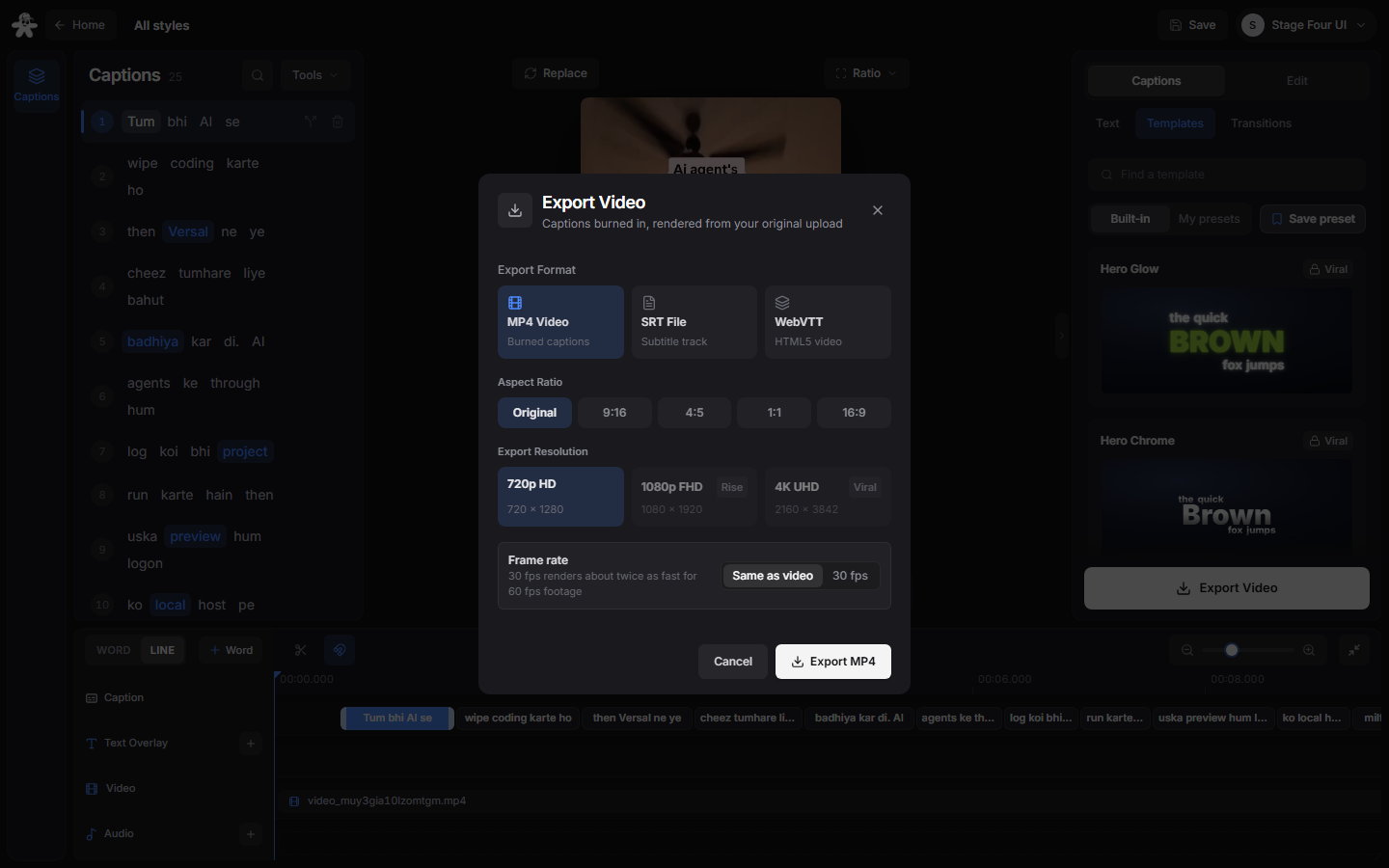
From upload to export in five steps.
A written walkthrough with screenshots, the same thing as a PDF, and the demo videos.
See it move.
Step by step.
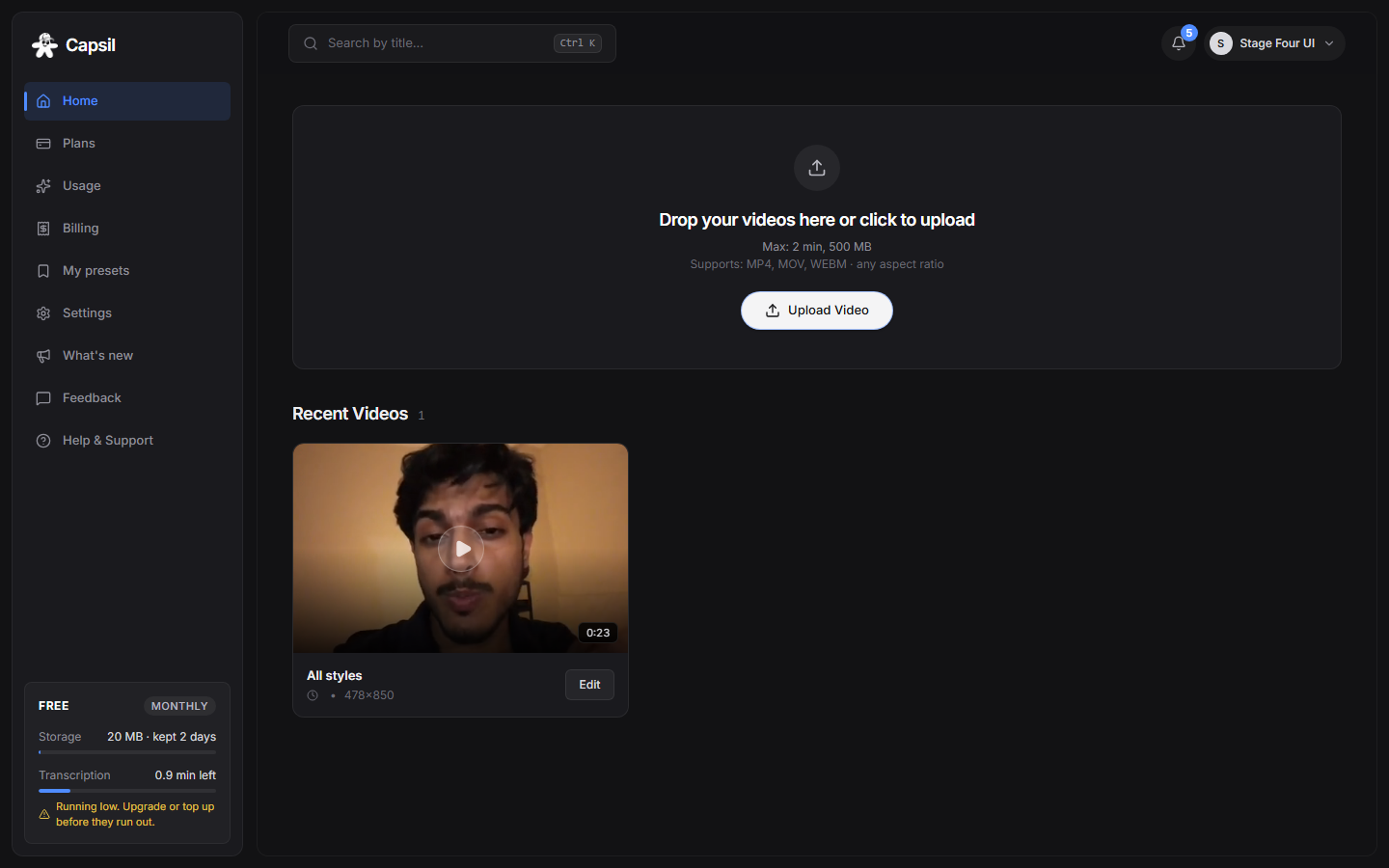
1. Upload a video
Sign in, drop a video on the home screen or tap Upload. MP4, MOV and WebM work, any aspect ratio. The free plan takes videos up to 2 minutes and 500 MB; paid plans go up to 20 minutes and 4 GB.
- Phone footage with HDR colour is converted automatically so it plays in the editor.
- The meter in the sidebar shows the minutes left on your plan; a 40-second clip uses 0.75 minutes.
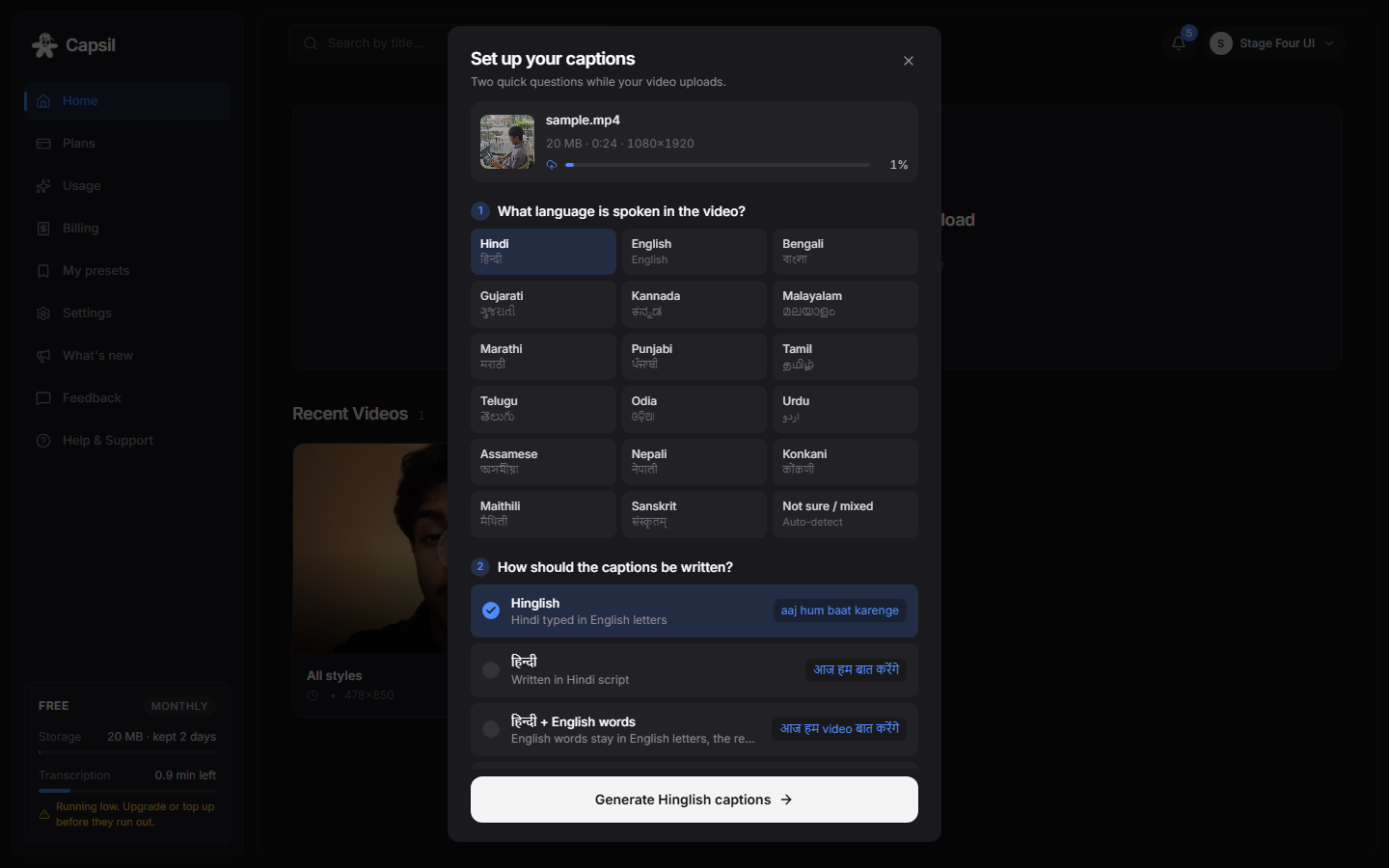
2. Choose the language and how captions are written
Pick the language spoken in the video, then how the captions should be written: in English letters (Hinglish, Tanglish), in the native script, mixed, or translated to English. Press Generate.
- Not sure which language? Choose 'Not sure / mixed' and Capsil detects it.
- Captions are generated in a few seconds; the key words are picked for you.
3. Fix a word, split a line, move the timing
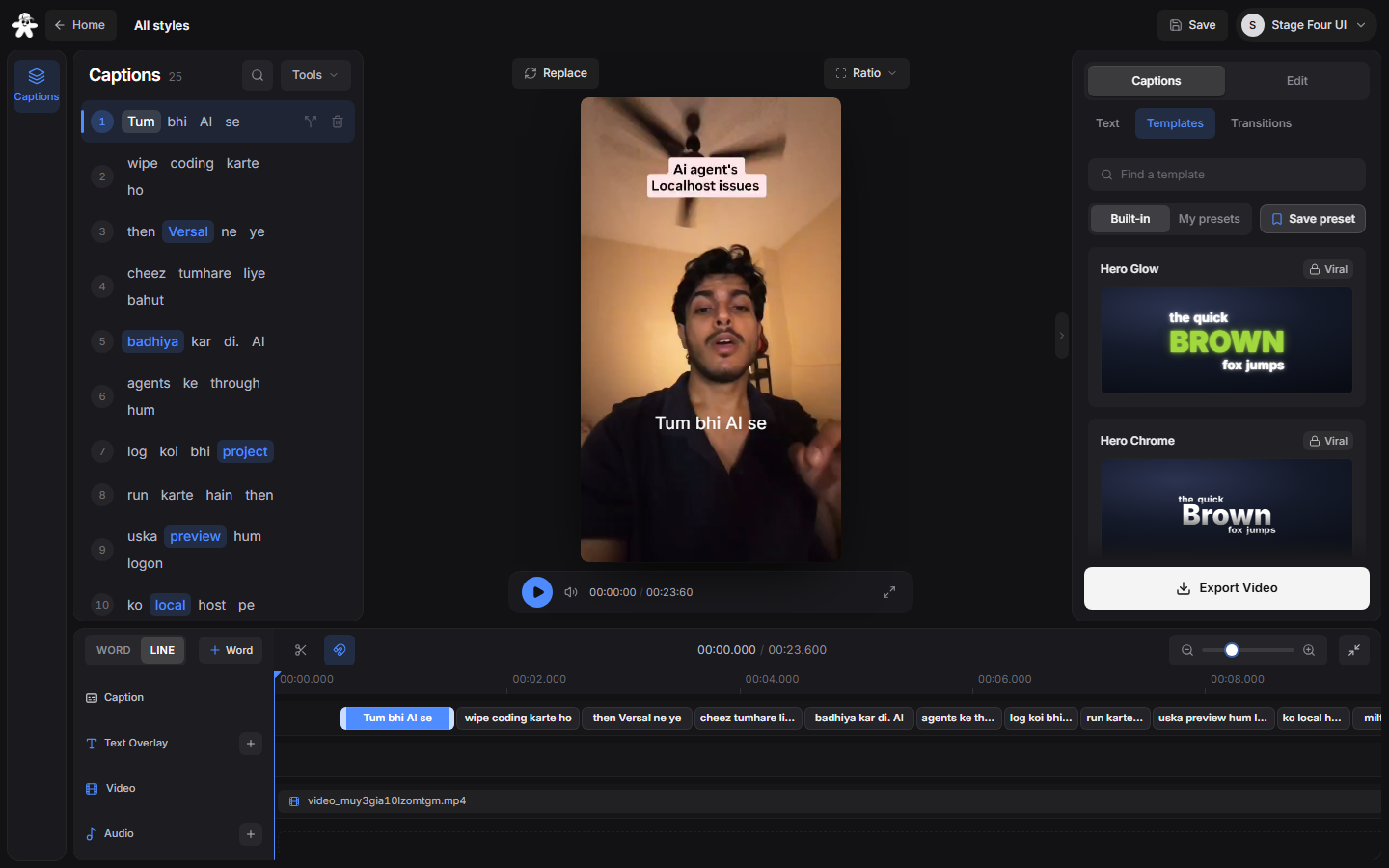
Every word is editable: click it to jump there, double-click to retype. Split a caption with the scissors, merge it back with the link icon, drag the edges on the timeline to retime it. Undo is always there.
- Starred words are the key words. Click the star to change which word gets the emphasis.
- Right-click a caption on the timeline for duplicate and delete; on a phone use the toolbar.
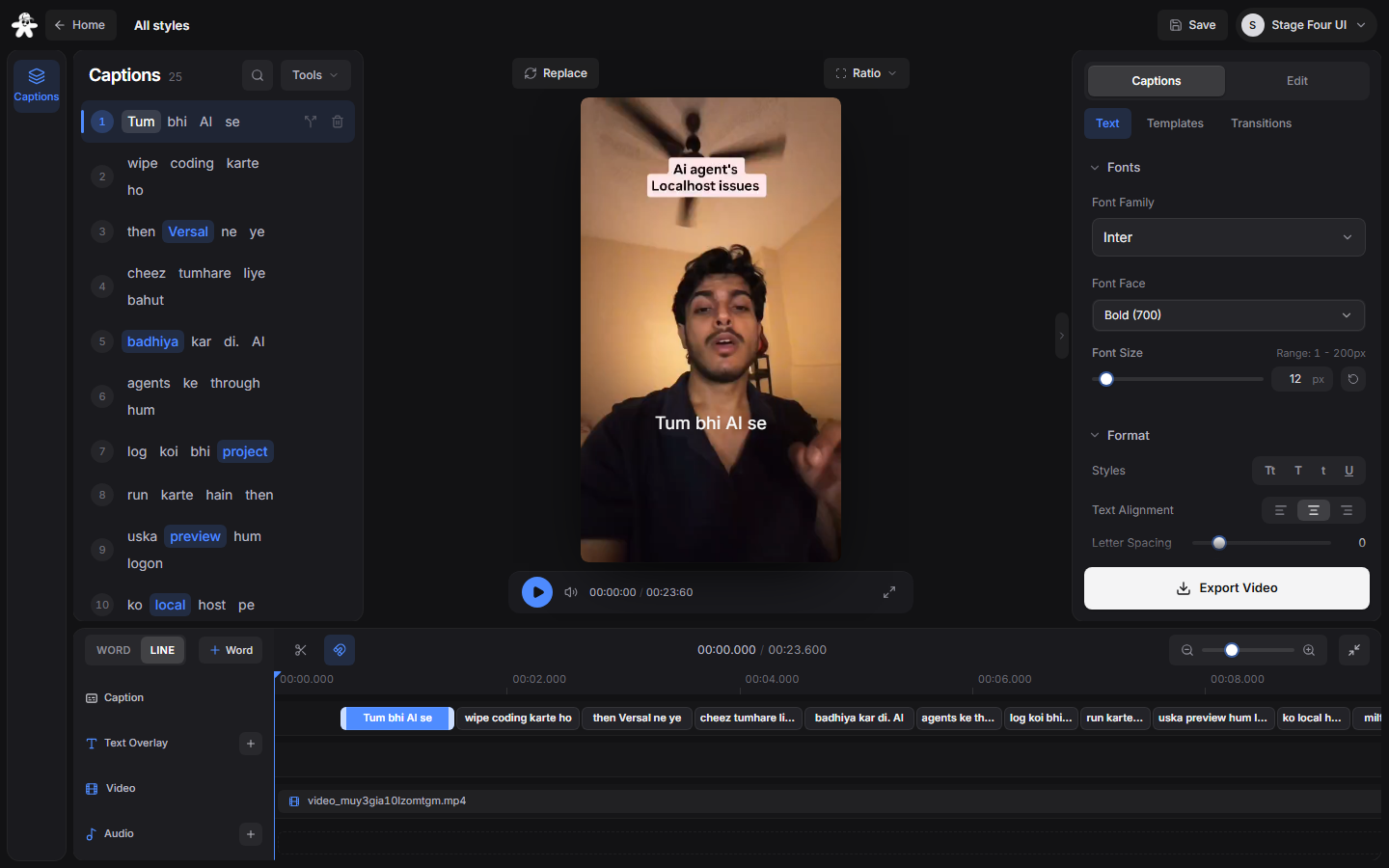
4. Pick a style, make it yours
The Templates tab has more than forty styles, animated ones first. The Text tab changes font, size, colours, spacing, effects and where the caption sits. Save the look as a preset and it is one click on your next video.
- A lock on a style means it belongs to a higher plan.
- Transitions can apply to every line or to one chosen word.
5. Export
Press Export, choose the quality your plan allows and the aspect ratio (9:16, 4:5, 1:1, 16:9 or the original), and download the MP4 with the captions burned in. SRT and WebVTT files are there too.
- 30 fps renders about twice as fast for 60 fps footage.
- Exports stay in your account for your plan's keep period, so you can download them again.